Payment form widget
You can use the payment form widget to perform payments.
You add the widget to the page, show it to the user, and the user then interacts with the widget, going through all the payment steps from beginning to end. The user first securely enters their card details, and then sees a message telling them that the payment has been successful (or an error message if anything goes wrong).
You need to create a payment session, and the widget does the rest: it will send the payment request, redirect the user to the appropriate address, and show them the screen with the result of the operation.
How to perform a payment through the payment form >
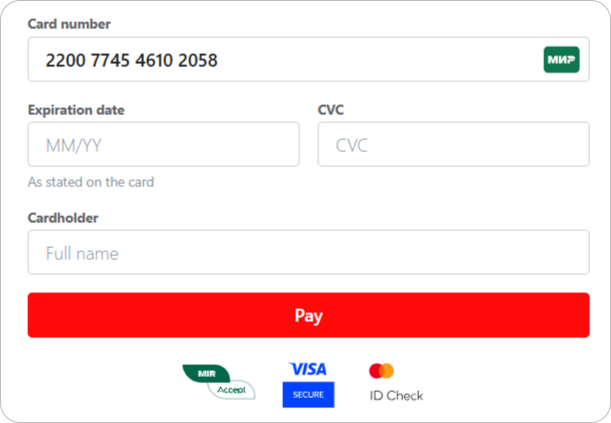
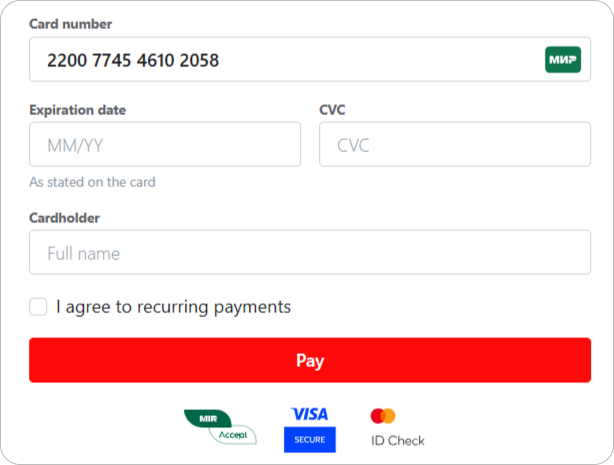
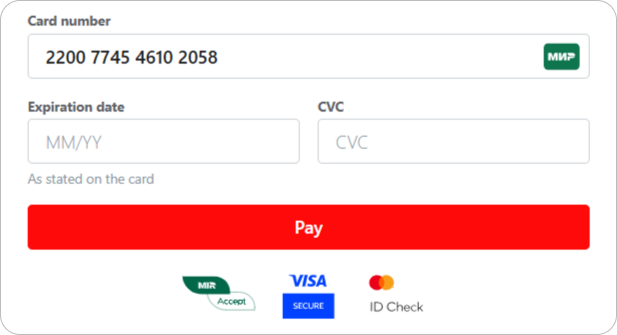
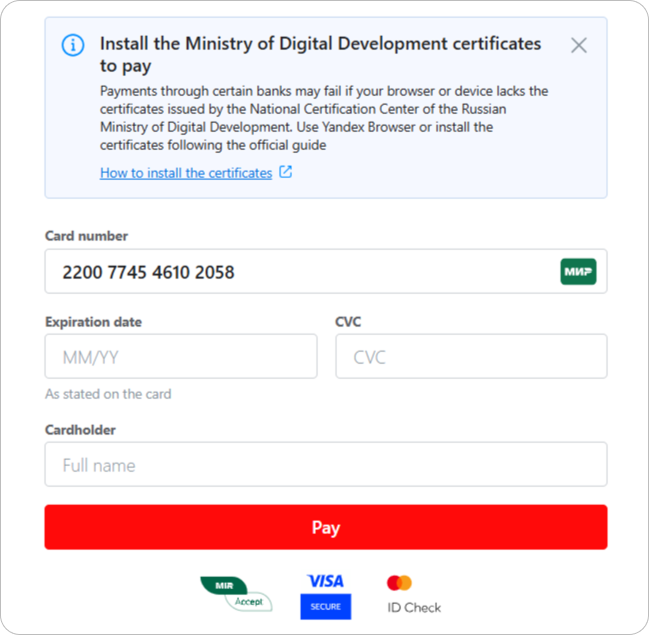
What the widget looks like
- Regular widget
- With a checkbox for recurring payments
- With no cardholder
- With the note
- Code example
<!DOCTYPE html>

<html lang="ru">
  <head>
    <meta charset="utf-8" />
    <title>Payment form widget</title>

    <link href="https://widget.bank131.ru/payment-form.css" rel="stylesheet" />
    <script src="https://widget.bank131.ru/payment-form.js" defer></script>
  </head>

  <body>
    <div id="bank131-payment-form"></div>

    <script>
      document.addEventListener('DOMContentLoaded', function () {
        if (!window.Bank131PaymentForm) {
          return;
        }

        const paymentForm = new Bank131PaymentForm('publicToken', {
          isCvcMasked: true,
          hideCardHolderField: false,
          customerInteractionRedirect: {
               target: "_blank",
          }});

        paymentForm.render();
      });
    </script>
  </body>
</html>
How to add a widget to a page
1. Link the scripts and styles
<!-- In test environment -->
<link href="https://widget-demo.bank131.ru/payment-form.css" rel="stylesheet" />
<script src="https://widget-demo.bank131.ru/payment-form.js" defer></script>
<!-- For real payments -->
<link href="https://widget.bank131.ru/payment-form.css" rel="stylesheet" />
<script src="https://widget.bank131.ru/payment-form.js" defer></script>
2. Add a container with the widget
<div id="bank131-payment-form"></div>
3. Create an instance of the widget
Once the script is linked to the page, the Bank131PaymentForm class will appear in the global scope. To create the payment form, pass the public token obtained to work with the widget to the constructor (the token method).
const paymentForm = new Bank131PaymentForm('public token');
To display the payment form, call the render() method:
paymentForm.render();
Widget API
Bank131PaymentForm
Payment form class constructor.
const paymentForm = new Bank131PaymentForm(publicToken[, options])
| Parameter | Type | Description |
|---|---|---|
publicToken | string | Mandatory. Public token |
options | object | Additional settings |
options.container | HTMLElement | Container into which the form will be inserted. Default value: <div id="bank131-payment-form"></div> |
Method: paymentForm.render()
The method displays the form on the page, in the container defined by the options.container parameter.
paymentForm.render([options])
| Parameter | Type | Description |
|---|---|---|
options | object | Additional settings |
options.container | HTMLElement | Container into which the form will be inserted. Default value: <div id="bank131-payment-form"></div> |
Event handler: paymentForm.onReady
Handles the event of the form becoming ready for work.
paymentForm.onReady = function () { /* handler */ }
Event handler: paymentForm.onPaymentStart
Handles the event occurring at the start of the payment process.
paymentForm.onPaymentStart = function () { /* handler */ }
Event handler: paymentForm.onPaymentSuccess
Handles the event occurring when the payment process finishes successfully.
paymentForm.onPaymentSuccess = function () {
  /* handler */
};
Event handler: paymentForm.onPaymentFail
Handles the event occurring when the payment process finishes unsuccessfully.
paymentForm.onPaymentFail = function (error) { /* handler */ }
Event handler: paymentForm.onDestroy
Handles the event of the widget getting closed.
paymentForm.onDestroy = () => {
/* handler */
    }
Widget customization
Hide CVV/CVC details
You can customize the CVV/CVC field of the widget to make it display only the latest digit entered by customers and mask the others entered before with *. To do this, add the isCvcMasked flag into the widget constructor, as follows:
const paymentForm = new Bank131PaymentForm('publicToken', {
         isCvcMasked: true,
         });
Open the 3D Secure window as required
You can choose how to open the 3D Secure window for the user. Use the target parameter of the customerInteractionRedirect object with the following options:
_blank— in a new tab_self— in the same frame_parent— in the next-level frame if the frames are nested in one another_top— outside of all the frames as the top window
Default:_top.
Note that:
- We do not recommend using the
_selfoption for security reasons.- If you use the
_blankoption, the user will need to allow pop-ups in the browser or follow the redirection link from the payment widget.
Hide the cardholder name
To hide the Cardholder filed, pass hideCardHolderField: true. By default, the field is shown.
Display the note on certificates
To display the note on certificates issued by the National Certification Center of the Russian Ministry of Digital Development, pass isMDDCertificatesDisclaimerDisplayed: true. By default, the note is not shown.
Appearance
You can link your own styles after the library ones and override them, like this:
<link href="https://widget.bank131.ru/payment-form.css" rel="stylesheet" />
<link href="custom-styles.css" rel="stylesheet" />
Or this:
/* custom-styles.css */

.bank131-Field__label {
  color: green;
}
You cannot yet change the appearance of the values entered inside the iframe. This functionality will be added later.
Also, you can modify texts of the widget UI elements. Here are what you can change:
- labels
- placeholders
- error messages
- prompt texts
- button names
- footer texts
To do that, you should pass the Options object with UI elements parameters within the Bank131PaymentForm widget constructor.
| Widget UI element | Parameter name | Type | Default value |
|---|---|---|---|
| Widget text settings | texts | object | |
| Failed payment message | failedPaymentScreen | string | Error |
| Payment form | paymentForm | object | |
| Payment button name | buttonPayLabel | string | Pay |
| Cardholder name text | cardholderLabel | string | Cardholder |
| Cardholder name prompt text | cardholderNote | string | None |
| Cardholder name placeholder | cardholderPlaceholder | string | Full name |
| Card number | cardNumberLabel | string | Card number |
| Card number prompt text | cardNumberNote | string | None |
| Card number placeholder | cardNumberPlaceholder | string | 0000 0000 0000 0000 |
| CVV/CVC number | cvvLabel | string | CVC |
| CVV/CVC number prompt text | cvvNote | string | None |
| CVV/CVC number placeholder | cvvPlaceholder | string | CVC |
| Card expiration date | expireDateLabel | string | Expiration date |
| Card expiration date prompt text | expireDateNote | string | As stated on the card |
| Card expiration date placeholder | expireDatePlaceholder | string | MM/YY |
| Recurring payment checkbox | recurrentLabel | string | I agree to recurring payments |
| Terms of agreement | |||
| Terms of agreement. The text within the mandatory {{#link}}{{/link}} tags is used as a link to the terms of agreement source. | termsAgreement | string | By pressing Pay, you accept the terms of our {{#link}}user agreement{{/link}} |
| Field validation error messages | validationErrors | object | |
| Invalid card number | INVALID_CARD_NUMBER | string | Invalid card number |
| Invalid CVV/CVC | INVALID_CVV | string | CVV/CVC has 3 digits |
| Invalid card expiration date | INVALID_EXPIRY_DATE | string | Invalid date |
| Required field value is missing | IS_REQUIRED | string | Required field |
| Payment process page | paymentProcessScreen | object | |
| Payment processing page text | description | string | Just a moment |
| Payment process screen heading | title | string | Payment processing... |
| Redirecting page (3D Secure) | redirectionScreen | object | |
| Invitation message to proceed with redirection in case of automatic redirection failure. The text within the mandatory {{#link}}{{/link}} tags is used as a link. | followTheLink | string | If you haven`t been redirected automatically, use {{#link}}this link.{{/link}} |
| Payment processing page header | title | string | Payment processing... |
| Automatic redirection warning, includes 3 seconds countdown timer. The {{countdown}} value is mandatory and will be replaced with the timer.Use the {{#strong}}{{/strong}} tags to emphasize the timer in bold. | waitForRedirectToBanksPage | string | You will be redirected to the issuer bank`s page in {{#strong}}{{countdown}} seconds.{{/strong}} |
| Successful payment page | successPaymentScreen | object | |
| Successful payment page header | title | string | Payment success |
| Transaction data | transactionData | object | |
| Transaction amount label | amountLabel | string | Amount |
| Payment type data (card type and masked card number) label | creditCardLabel | string | Card |
| Transaction ID label | transactionIdLabel | string | Transaction ID |
| Unknown error message | unknownError | string | Something went wrong... |
An example of code to modify texts:
const paymentForm = new Bank131PaymentForm('<public token>', {
  isCvcMasked: true,
  hideCardHolderField: false,
  texts: {
    failedPaymentScreen: {
      title: 'Error',
    },
    paymentForm: {
      buttonPayLabel: 'Pay',
      cardholderLabel: 'Cardholder',
      cardholderNote: '',
      cardholderPlaceholder: 'Full name',
      cardNumberLabel: 'Card number',
      cardNumberNote: '',
      cardNumberPlaceholder: '0000 0000 0000 0000',
      cvvLabel: 'CVC',
      cvvNote: '',
      cvvPlaceholder: 'CVC',
      expireDateLabel: 'Expiration date',
      expireDateNote: '',
      expireDatePlaceholder: 'As stated on the card',
      recurrentLabel: 'I agree to recurring payments',
      termsAgreement:
        'By pressing Pay, you accept the terms of our {{#link}}user agreement{{/link}}',
      validationErrors: {
        INVALID_CARD_NUMBER: 'Invalid card number',
        INVALID_CVV: 'CVV/CVC has 3 digits',
        INVALID_EXPIRY_DATE: 'Invalid date',
        IS_REQUIRED: 'Required field',
      },
    },
    paymentProcessScreen: {
      description: 'Just a moment',
      title: 'Payment processing...',
    },
    redirectionScreen: {
      followTheLink:
        'If you haven`t been redirected automatically, use {{#link}}this link{{/link}}.',
      title: 'Payment processing...',
      waitForRedirectToBanksPage:
        'You will be redirected to the issuer bank`s page in {{#strong}}{{count}} seconds.{{/strong}}',
    },
    successPaymentScreen: {
      title: 'Payment success',
    },
    transactionData: {
      amountLabel: 'Amount',
      creditCardLabel: 'Card',
      transactionIdLabel: 'Transaction ID',
    },
    unknownError: 'Something went wrong...',
  },
});
End user errors
While interacting with our widget, end users may receive the errors stated below.
If you choose to translate the widget texts into other languages, for example, Spanish, note that for now end users will receive error descriptions still in English.
| Error code | Error description |
|---|---|
3DS_error | To complete the transaction successfully, 3DS authentication is required |
activity_count_exceeded | The activity/amount limit for the card is exceeded |
bank_card_expired | The bank card is past its expiration date |
declined_by_issuer_bank | The operation was declined by the emitting bank |
insufficient_funds | The card does not have enough funds |