Widget for connecting a self-employed person to the Bank
Use this widget to connect a self-employed person to Bank 131.
How to use the widget
-
The self-employed person enters their INN or phone number, agrees to the data processing terms, and clicks the button to send request.
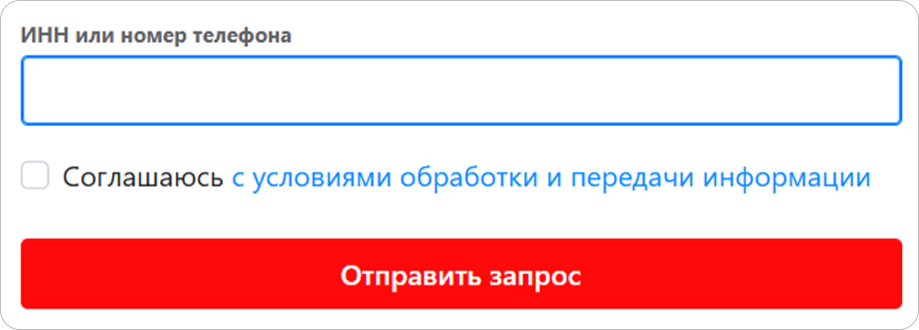
-
The self-employed person confirms the connection and clicks the button to update the request status.
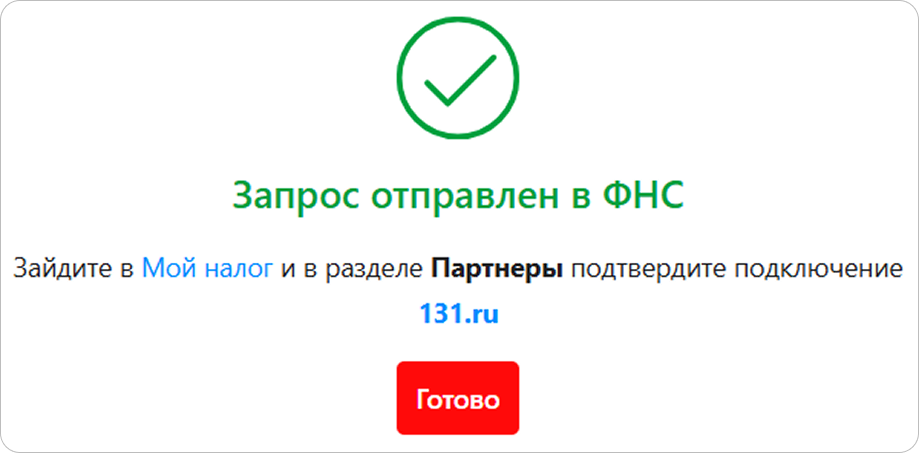
Initializing the widget
Step 1. Get a public token
Send a request to Bank 131 to create a token (token), specifying the widget type as self_employed_widget. The response will contain your public token.
Step 2. Set up scripts and CSS styles
Include the widget's script (JS) and styles (CSS). The URLs differ between testing and live operations:
- For testing
- For real operations
<link href="https://widget-demo.bank131.ru/self-employed.css" rel="stylesheet">
<script src="https://widget-demo.bank131.ru/self-employed.js"></script>
<link href="https://widget.bank131.ru/self-employed.css" rel="stylesheet">
<script src="https://widget.bank131.ru/self-employed.js"></script>
After linking the script to the page, the Bank131SelfEmployed class will appear in the global scope.
Step 3. Add a container
Add a container with a unique ID to place the widget on the page:
<div id="bank131-self-employed"></div>
Step 4. Create an instance of the class
Pass the public token to the Bank131SelfEmployed class constructor. You can specify the tax reference number (INN, 12 digits) or phone number (11 digits in the 70000000000 format) as the value of the taxReferenceOrPhone parameter to be displayed in the widget when connecting the self-employed—this will help to prevent them from mistyping their details.
Step 5. Display the widget
Call the render() method:
<script>
  if (window.Bank131SelfEmployed) {
    const selfEmployed = new Bank131SelfEmployed({
      initialValues: {
        taxReferenceOrPhone: '500000000000',
      },
      stage: Bank131SelfEmployed.STAGES.bind,
      publicToken: '0eb43bd1b6f5c7ed83903d7acd774179621018a2e74fb2702e5616f1f31fe553', // token
    });

    selfEmployed.render();
  }
</script>
Step 6. Wait for a result from the widget
Subscribe to the messages on the self-employed status:
window.addEventListener('message', function (event) {
// Handler code

console.dir(event.data);
})
Message format for event data:
{
  "meta": {
    "stage": "bind"
  },
  "payload": {
    "status": "completed" // "in_progress" or "failed"
  }
}
The status field can have the following values:
completed— the connection was successfulin_progress— the registration is in progress; waiting for the self-employed person to confirm the connectionfailed— the connection failed
How to connect a self-employed to Bank 131 >