FPS widget
To acquire payments using FPS, you can use the Bank 131 widget.
You add the widget to the page, display it to the user, and the user then interacts with the widget, going through all the payment steps from beginning to end, and then sees a message telling them that the payment has been successful (or an error message if anything goes wrong).
You need to create a payment session, and the widget does the rest: it will send the payment request, redirect the user to the appropriate address, and display them the screen with the result of the operation.
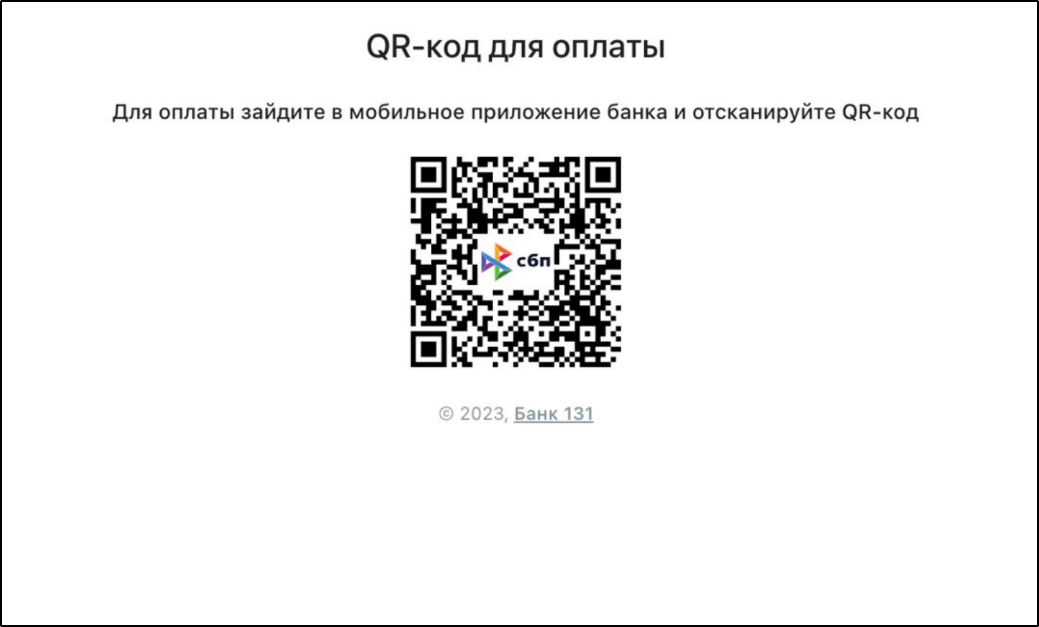
How the widget looks like
Code example of a page with FPS widget added
<html lang="ru">
  <head>
    <meta charset="utf-8" />
    <title>FPS acquiring</title>

    <meta name="viewport" content="width=device-width,initial-scale=1" />
    <meta name="format-detection" content="telephone=no" />

    <!-- Connecting scripts and widget styles -->
    <link href="https://widget-demo.bank131.ru/sbp-payment.css" rel="stylesheet" />
    <script src="https://widget-demo.bank131.ru/sbp-payment.js" defer></script>
  </head>

  <body>
    <div id="bank131-sbp-payment"></div>

    <script>
      document.addEventListener('DOMContentLoaded', function () {
        if (!window.Bank131SBPPayment) {
          return;
        }

        const widget = new Bank131SBPPayment('public_token');

        widget.onReady = function () {
          console.log('SBPPayment is ready.');
        };

        widget.onSBPStart = function () {
          console.log('SBPPayment was started.');
        };
        widget.onSBPFail = function (error) {
          console.log('SBPPayment was failed with an error', error);
        };
        widget.onSBPSuccess = function () {
          console.log('SBPPayment was succeed.');
        };

        widget.render();
      });
    </script>
  </body>
</html>
How to embed the FPS widget
1. Set up scripts and CSS styles
<!-- Testing environment -->
<link href="https://widget-demo.bank131.ru/sbp-payment.css" rel="stylesheet" />
<script src="https://widget-demo.bank131.ru/sbp-payment.js" defer></script>
<!-- Production environment -->
<link href="https://widget.bank131.ru/sbp-payment.css" rel="stylesheet" />
<script src="https://widget.bank131.ru/sbp-payment.js" defer></script>
2. Add widget container
<div id="bank131-sbp-payment"></div>
3. Create a widget instance
After you set up the script, the Bank131SBPPayment constructor class becomes available.
const widget = new Bank131SBPPayment('public token');
To display the FPS payment form, use the render() method:
widget.render();
Widget API
Bank131SBPPayment
FPS payment form instance constructor
const widget = new Bank131SBPPayment(publicToken[, options])
| Parameter | Type | Description |
|---|---|---|
| publicToken | string | Mandatory public token. |
| options | object | Additional settings. |
| options.container | HTMLElement | Container with form. Default value: <div id="bank131-sbp-payment"></div> |
widget.render() method
The method displays the payment form in the page. The container is specified within the options.container setting.
widget.render([options])
| Parameter | Type | Description |
|---|---|---|
| options | object | Additional settings. |
| options.container | HTMLElement | Container with form. Default value: <div id="bank131-sbp-payment"></div> |
widget.onReady event handler
The widget is up and ready event handler.
widget.onReady = function () { /* handler */ }
widget.onSBPStart event handler
Payment start event handler.
widget.onSBPStart = function () { /* handler */ }
widget.onSBPSuccess event handler
Payment succeeded event handler.
widget.onSBPSuccess = function () {
  /* handler */
};
widget.onSBPFail event handler
Payment failed event handler.
widget.onSBPFail = function (error) { /* handler */ }
How to customize the SBP widget
Widget appearance
You can set up your own styles:
/* custom-styles.css */

.bank131-Field__label {
  color: green;
}