Widget for getting tokenized bank card details
Use the widget to store bank card data with Bank 131.
- What the widget looks like
- Code example
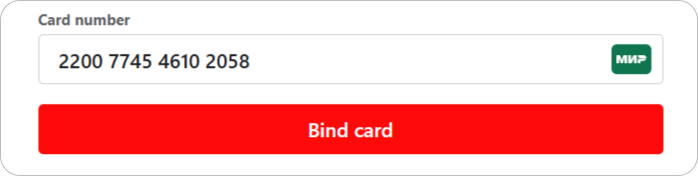
<!DOCTYPE html>

<html lang="ru">
  <head>
    <meta charset="utf-8" />
    <title>Card number tokenization widget.</title>

    <meta name="viewport" content="width=device-width,initial-scale=1" />
    <meta name="format-detection" content="telephone=no" />

    <!-- Linking the widget's script and styles. -->
    <link
      href="https://widget.bank131.ru/card-tokenizer.css"
      rel="stylesheet"
    />
    <script src="https://widget.bank131.ru/card-tokenizer.js" defer></script>
  </head>

  <body>
    <div id="bank131-card-tokenizer"></div>

    <script>
      document.addEventListener('DOMContentLoaded', function () {
        if (!window.Bank131CardTokenizer) {
          return;
        }

        const cardTokenizer = new Bank131CardTokenizer('public token');

        cardTokenizer.onTokenizationSuccess = function (cardToken) {
          // Handling the event of successful token reception.
        };

        cardTokenizer.render();
      });
    </script>
  </body>
</html>
How to use the widget
You embed the widget on your website. The user enters their card number, Bank 131 stores it in its system, and returns a payout hash to you.
You can save this hash and use it for future payouts to the same account. This is secure.
You can find out information about the hash using the token/info method.
Initializing the widget
Step 1. Get a public token
Send a request to Bank 131 to create a token (token), specifying the widget type as tokenize_widget. The response will contain your public token.
Step 2. Set up scripts and CSS styles
Include the widget's script (JS) and styles (CSS). The URLs differ between testing and live operations:
<!-- In test environment -->
<link
  href="https://widget-demo.bank131.ru/card-tokenizer.css"
  rel="stylesheet"
/>
<script src="https://widget-demo.bank131.ru/card-tokenizer.js" defer></script>
<!-- For real payments -->
<link href="https://widget.bank131.ru/card-tokenizer.css" rel="stylesheet" />
<script src="https://widget.bank131.ru/card-tokenizer.js" defer></script>
After linking the script to the page, the Bank131CardTokenizer class will appear in the global scope.
Step 3. Add a container
Add a container with a unique ID to place the widget on the page:
<div id="bank131-card-tokenizer"></div>
Step 4. Create an instance of the class
Pass the public token to the Bank131CardTokenizer class constructor:
const cardTokenizer = new Bank131CardTokenizer('public token');
Set the following event handler for the successful completion of the tokenization process:
cardTokenizer.onTokenizationSuccess = function (cardToken) {
  // ...
};
Step 5. Display the widget
Call the render() method:
cardTokenizer.render();
Widget API
Constructor: Bank131CardTokenizer
Widget class constructor:
new Bank131CardTokenizer(publicToken[, options])
| Parameter | Type | Description |
|---|---|---|
PublicToken | string | Public token. The parameter is mandatory |
options | object | Additional settings |
options.container | HTMLElement | Container into which the widget will be inserted. The default value is: <div id="bank131-card-tokenizer"></div> |
options.texts | object | |
options.texts.cardNumberLabel | string | Label for the card number field. Default value: Card number |
options.texts.submitButtonLabel | string | Label for the card linking button. Default value: Link the card |
Method: cardTokenizer.render()
It displays the widget in the container defined by the options.container parameter:
cardTokenizer.render();
Event handler: cardTokenizer.onReady
It is called when the widget is ready for work:
cardTokenizer.onReady = function () {
  /* handler */
};
Event handler: cardTokenizer.onTokenizationStart
It is called at the start of the hashing process:
cardTokenizer.onTokenizationStart = function () {
  /* handler */
};
Event handler: cardTokenizer.onTokenizationSuccess
It is called when the tokenization process finishes successfully:
cardTokenizer.onTokenizationSuccess = function (cardToken) {
  /* handler */
};
| Parameter | Type | Description |
|---|---|---|
cardToken | object | |
cardToken.info | object | Additional card information |
cardToken.info.card_network | string | Payment system type. Possible values: visa, mastercard, mir |
cardToken.info.card_type | string | Card type. Additionally specifies the subbrand (visa_electron, maestro, mirmaestro) |
cardToken.info.masked_card_number | string | Masked card number value, e.g. 424242******4242 |
cardToken.token | string | Card number hash |
Event handler: cardTokenizer.onTokenizationFail
It is called when the tokenization process finishes unsuccessfully:
cardTokenizer.onTokenizationFail = function (error) {
  /* handler */
};
Widget customization
Appearance
To customize the widget's appearance, include your own stylesheet after the default styles. Input fields inside iframe cannot be modified.
An example of adding custom styles:
<link href="https://widget.bank131.ru/card-tokenizer.css" rel="stylesheet" />
<link href="custom-styles.css" rel="stylesheet" />
An example of reassigning the color:
/* custom-styles.css */

.bank131-Field__label {
  color: green;
}
Texts
You can change the standard texts using the options.texts parameter in the Bank131CardTokenizer constructor.
How to make a payout using the widget or by token >